 Iron Diary
Guide
Create a program with AI
Iron Diary doesn’t have an AI inside it. It writes the prompt, you take it to the AI you already use, and you bring the program back. It takes about two minutes the first time.
1. Open the generator
You can reach Create a Program with AI from three places:
- The Dashboard, under the start button: “Not sure what to train? Create a Program with AI”
- Settings → Create a Program with AI
- The Programs screen
The screen has two steps. Step 1 builds what you send to the AI. Step 2 brings its reply back.
2. Build your prompt — pick one
The switch at the top of the screen picks how you build what goes to the AI — use one or the other. Both end the same way: you paste the AI’s reply back into Step 2.
Guided · start here
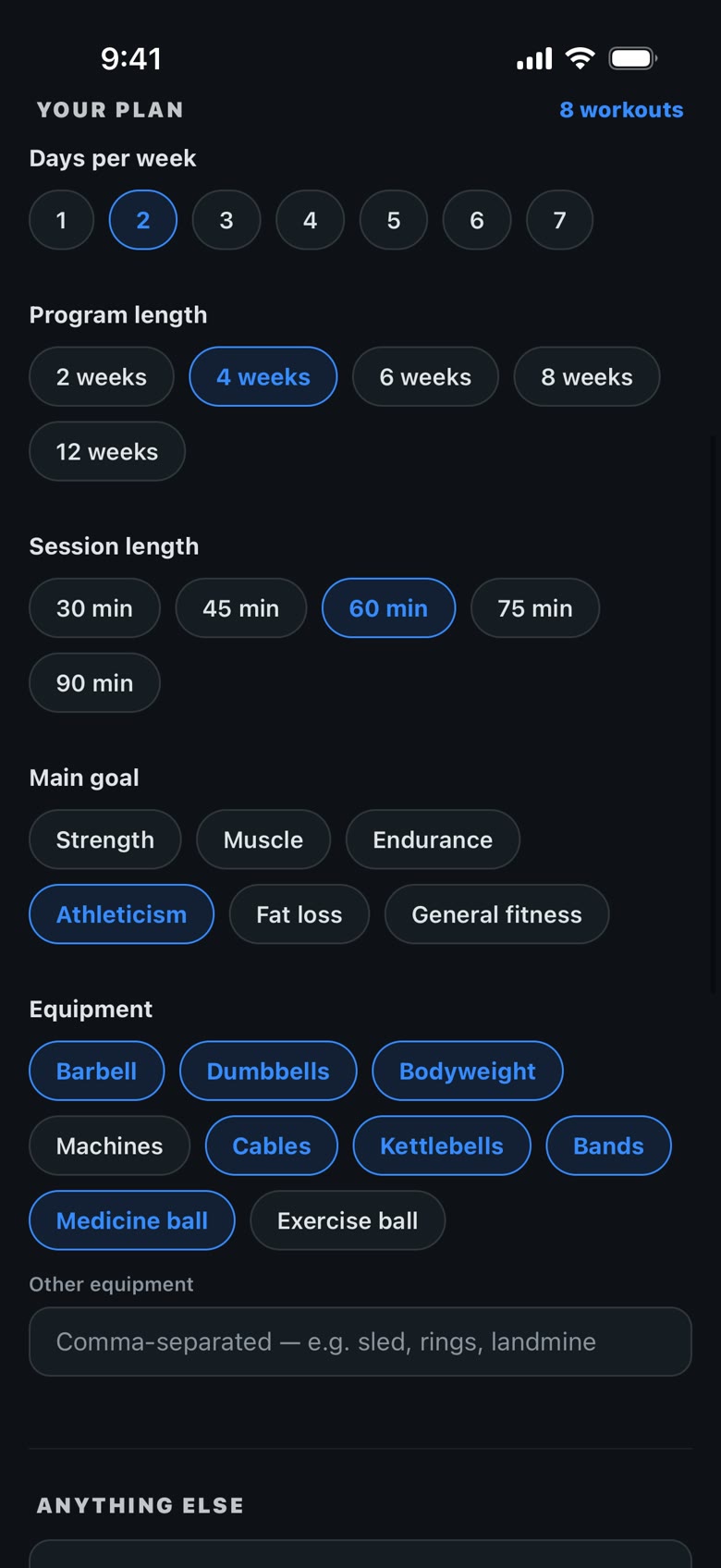
- Pick a preset, or skip it. Presets like Strength maintenance or Home / minimal equipment fill in the plan for you. Everything stays editable afterwards.
- Fill in your plan. Choose days per week, program length, session length, your main goal, and the equipment you have. Have something the chips don’t cover — a sled, rings, a landmine? Type it under Other equipment, separated by commas.
- Add anything else. Injuries to work around, lifts to prioritize, a split you like. Plain sentences are fine.
- Choose the context to send. Include your exercise library so the AI uses names you already have (this keeps your history comparable across programs). Include recent workouts — from the last month, 3 months, or 12 months — so it can pitch the volume and effort at where you actually are.
- Tap Copy Prompt. Under the button, Iron Diary estimates how long the AI’s reply will be.
Your choices are saved. Leave the screen, come back next month, and your last plan is still filled in.
Advanced
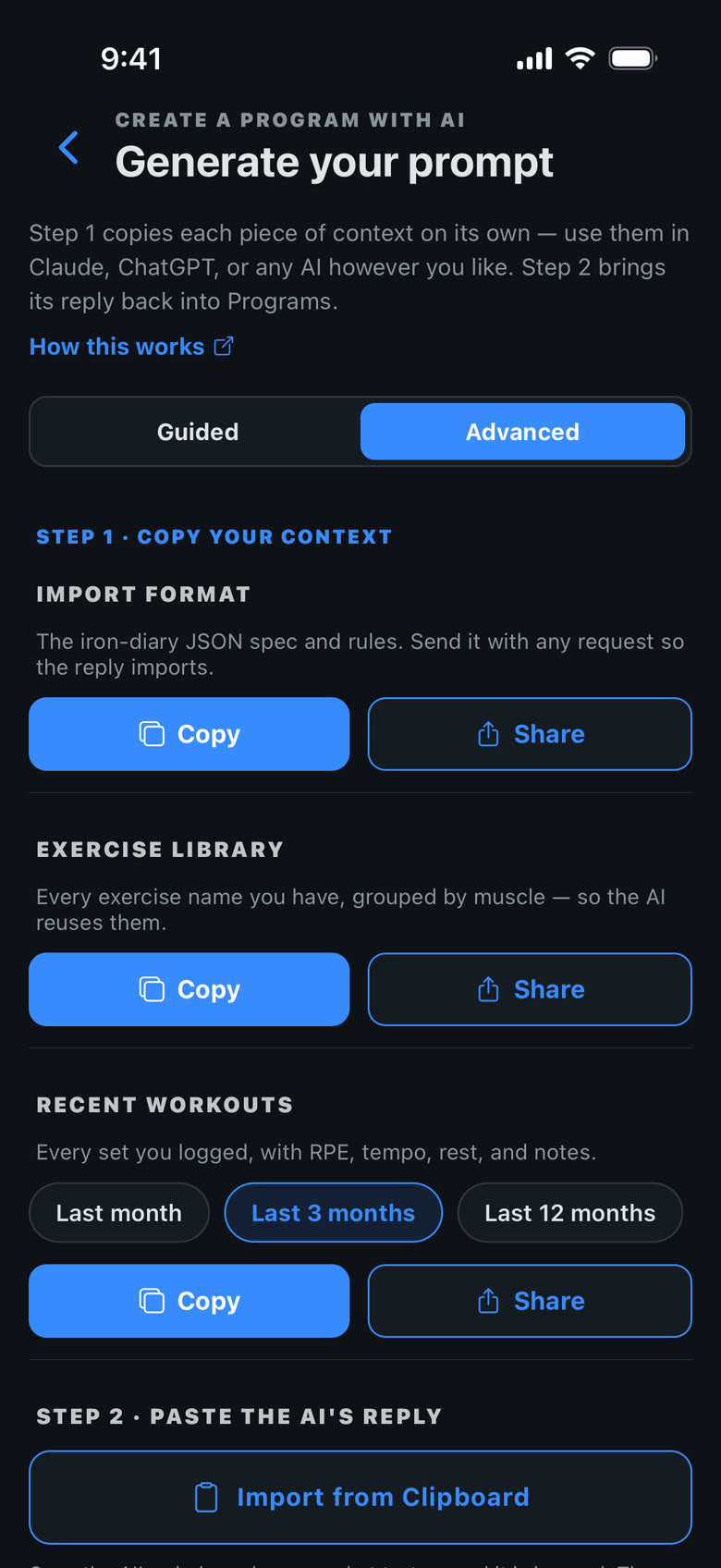
No form — three pieces of context, each with its own Copy and Share:
| Piece | What it contains |
|---|---|
| Import format | The iron-diary JSON format and its rules. Send it every time — it’s what makes the reply importable. |
| Exercise library | Every exercise name you have, grouped by muscle. |
| Recent workouts | Every set you logged in the period you choose, with RPE, tempo, rest, and notes. |
Send the pieces you want, then describe the program in your own words. For a long history, Share saves a file you can attach to the chat instead of pasting.
3. Paste it into your AI
Open ChatGPT, Claude, Gemini, or any other assistant and start a new chat. With Guided, paste the prompt and send it. With Advanced, paste the pieces you copied (or attach the shared files), then say what you want.
The AI replies with a single block of JSON in Iron Diary’s format. It will look like code. That’s expected. Copy the whole reply — most apps have a copy button under the message. If the AI wrapped the JSON in some chat text, copy that too; Iron Diary ignores it.
Loads are set by feel. The program sets reps and a target RPE (how hard the set should feel, 1–10) but no weights. You pick the load in the gym, so the program works whether you’re fresh or tired.
4. Bring the program back
- Return to Iron Diary — the generator screen is where you left it.
- Under Step 2 · Paste the AI’s reply, tap Import from Clipboard. If iOS asks, choose Allow Paste.
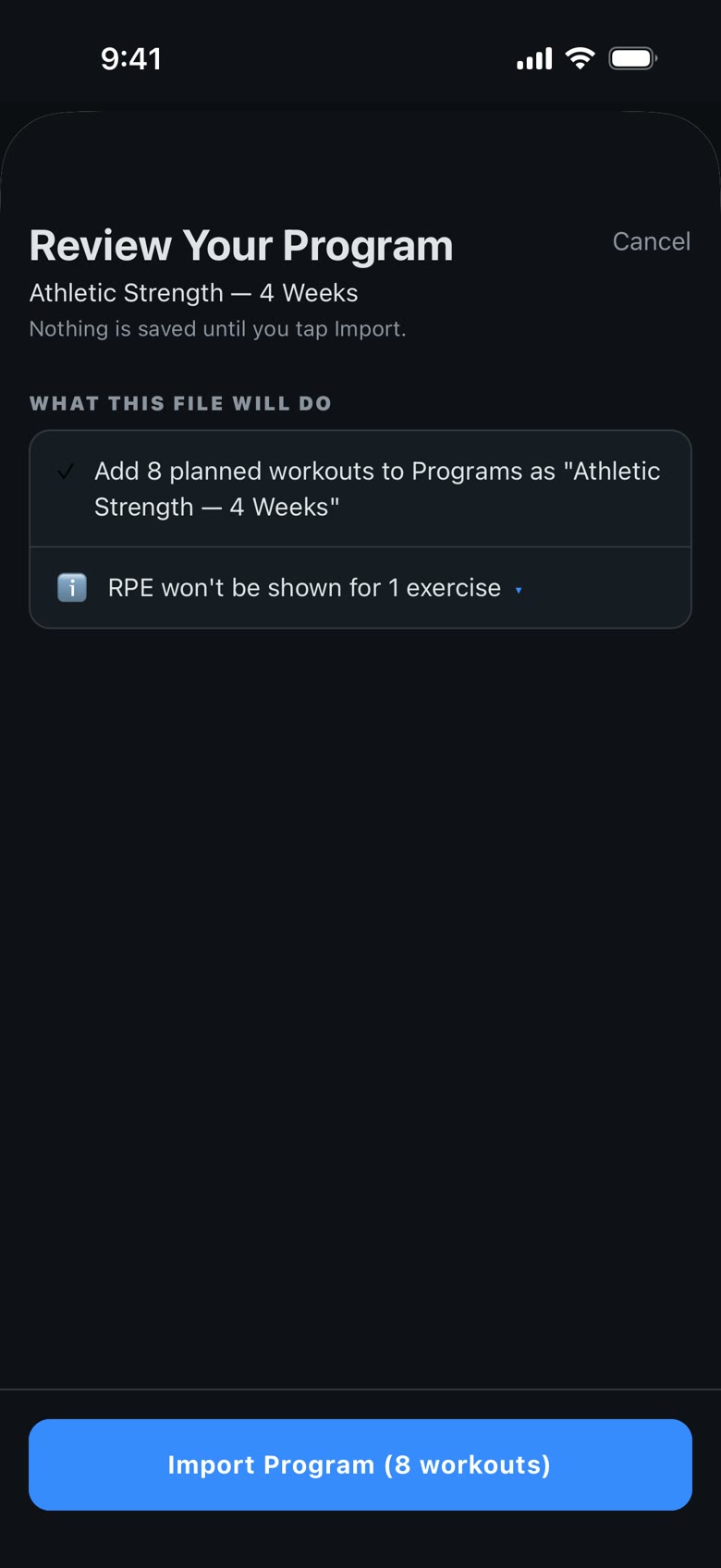
- Check the review screen. It lists what the file will do: how many workouts it plans, and any new exercises it will add to your library. If you already have a program with the same name, choose whether to add to it, replace it, or keep both.
- Confirm. The program appears in Programs, and the Dashboard offers its first workout.
More
Revise a program
Knee acting up? In Programs, tap Revise this program. The generator opens with your current program attached. Describe the change — “swap barbell squats for a machine variation” — copy, paste into your AI, and import the reply. The review screen offers to replace the old version.
When a reply won’t import
The reply stopped partway through
Long programs can be more than an AI will write in one reply, and a cut-off reply won’t import. The generator warns you when a plan is likely to be too long. Ask for fewer weeks at a time — for example weeks 1–4, then weeks 5–8 in a second message. Keep the program title the same, and the second import can be added to the first.
“This file has errors”
The message lists what’s wrong. Paste it back to the AI and ask for a corrected version of the whole program.
“Clipboard empty” or “Paste wasn’t allowed”
Copy the reply again, then tap Import from Clipboard and choose Allow Paste when iOS asks.
Still stuck?
Email iron.diary@soleer.com and include the AI’s reply.